Loading...
Staff guides
Step-by-step guides for the pharmacy team. Every customer shown in the pictures is made up.
Tabz
Find a customer in Tabz
Look someone up and read their page: cart, orders, cards and notifications.
Open Tabz from Open Tabz on the Payments page. Everything about one patient lives on their customer page.
Search
- Choose Customers in the left menu.
- Type a name or phone number in the search box and press Enter.
- Click the customer's row.
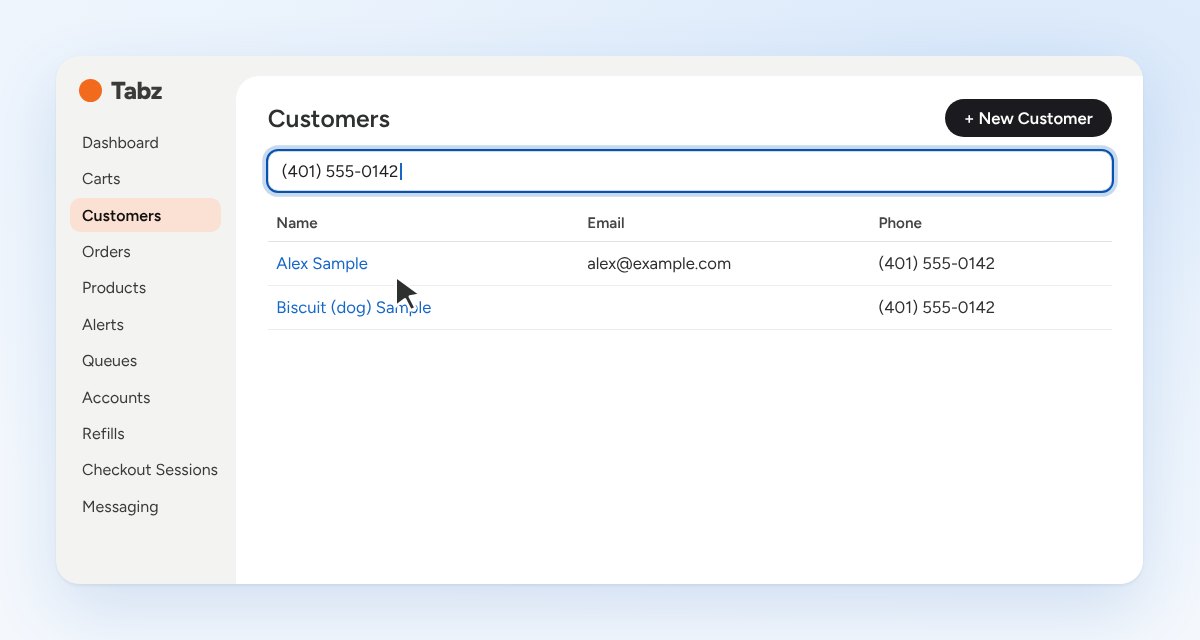
A phone number shared by a household lists everyone on it, pets included. Check the name and date of birth before you open one.
What is on the customer page
- Cart Information: their details and any open cart.
- Order History: every order, with its status and amount. Click an order number to open it.
- Payment Methods: saved cards by brand and last four digits. Add Card saves a new one.
- Notifications: every text and email Tabz sent them, and whether it was delivered.
- Calls and Notes: Add a Note or Log a Call.
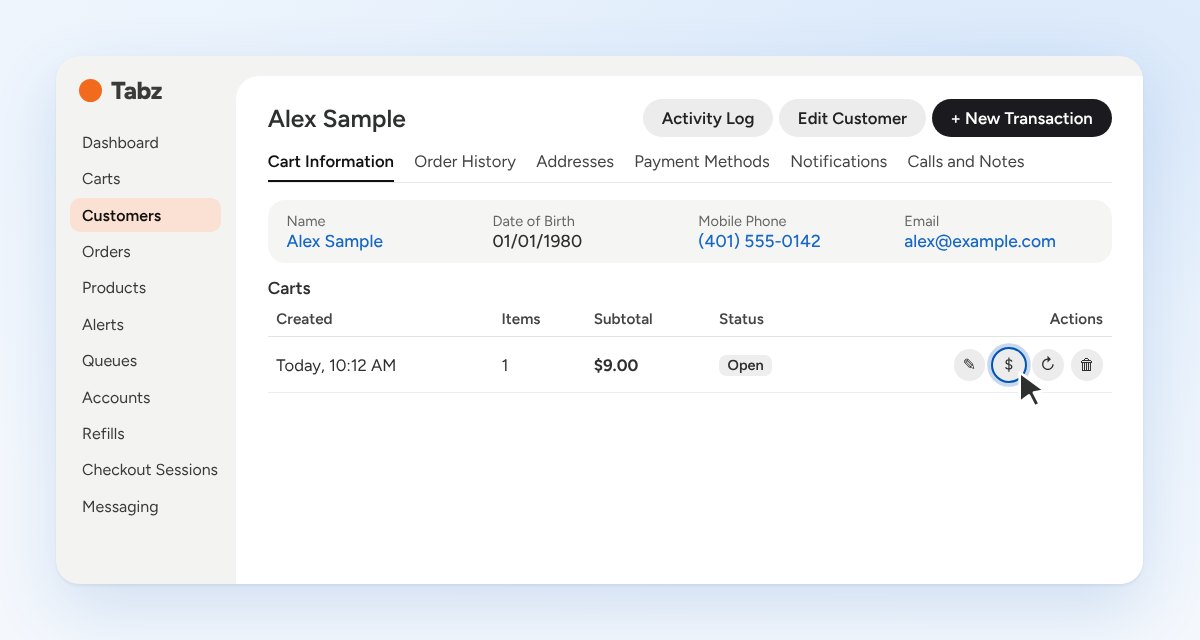
An open cart
An open cart shows under Carts with its items, subtotal and the status Open. The icons at the end of the row let you Create transaction (charge it), Resend notification or Cancel cart. Hover over an icon to see its name.
← All guidesCharge a card in Tabz
Take payment with a saved card or a new one, without double charging an open cart.
Look for an open cart first. If the customer has one, charge that cart. Charging an open cart closes it, so the patient is not asked to pay again.
If there is an open cart
- Open the customer and stay on Cart Information.
- On the cart's row, press the Create transaction icon. The cart's items are already filled in.
- Go to "Choose the card" below.
If there is no open cart
- Press New Transaction at the top of the customer page.
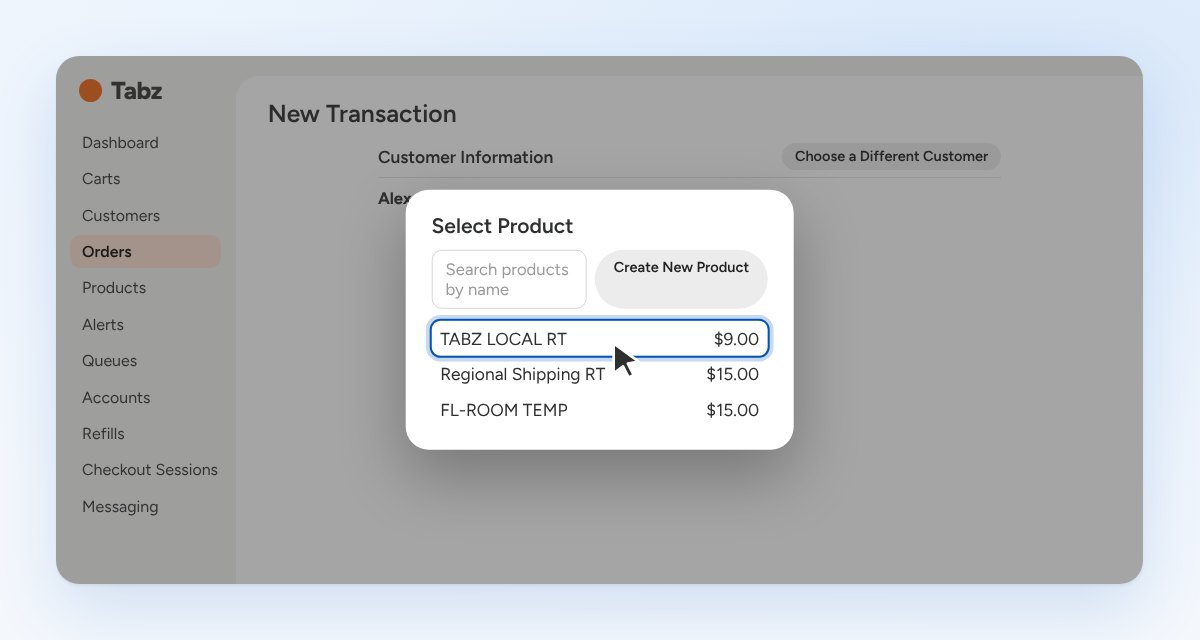
- Press Add Items to Cart and pick the product. Use the search box if the list is long.
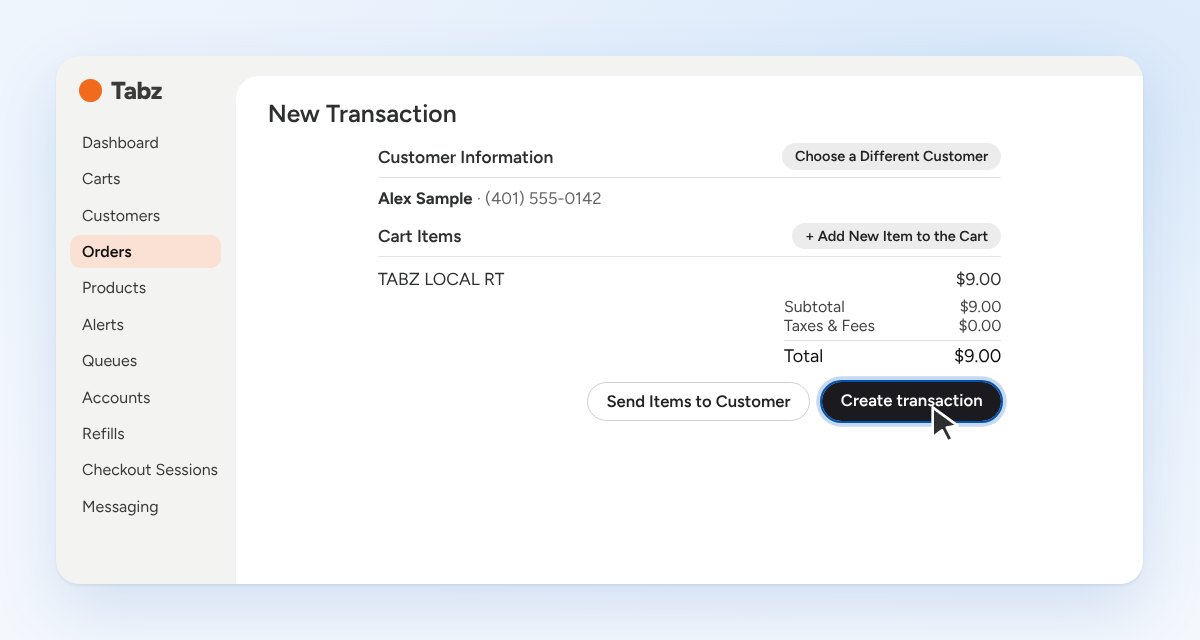
- Check the item, quantity and total. Use + Add New Item to the Cart for more.
Choose the card
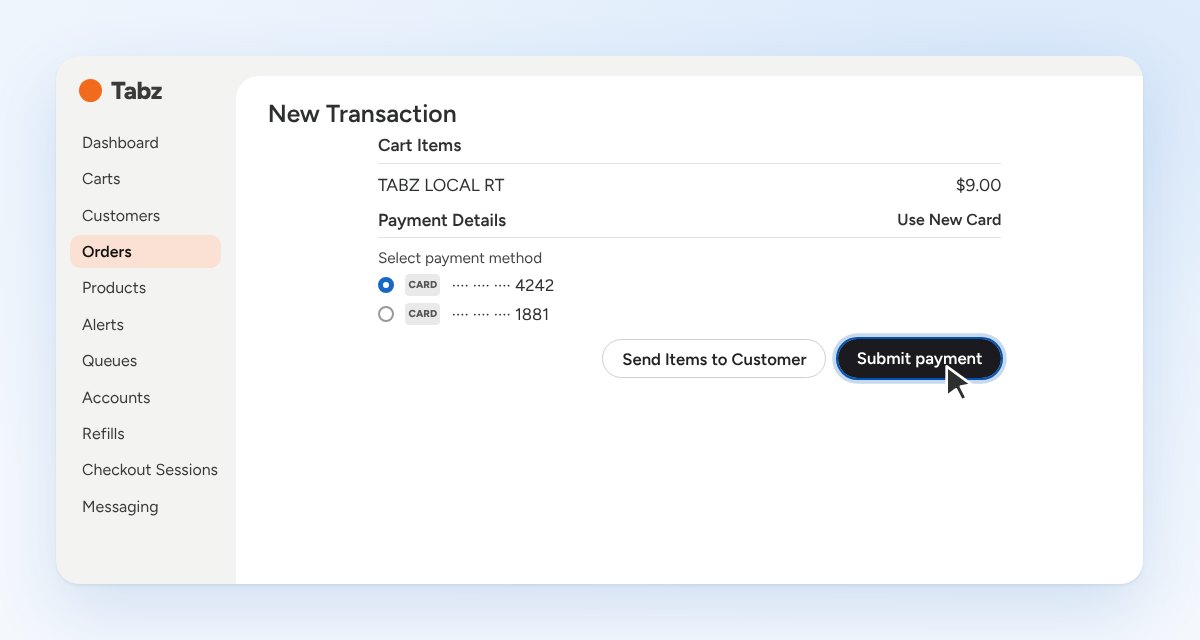
- Press Create transaction. Nothing is charged yet. A Payment Details section opens on the same page.
- Pick the saved card to use. The first one is already selected, so check the last four digits with the patient.
- Press Submit payment.
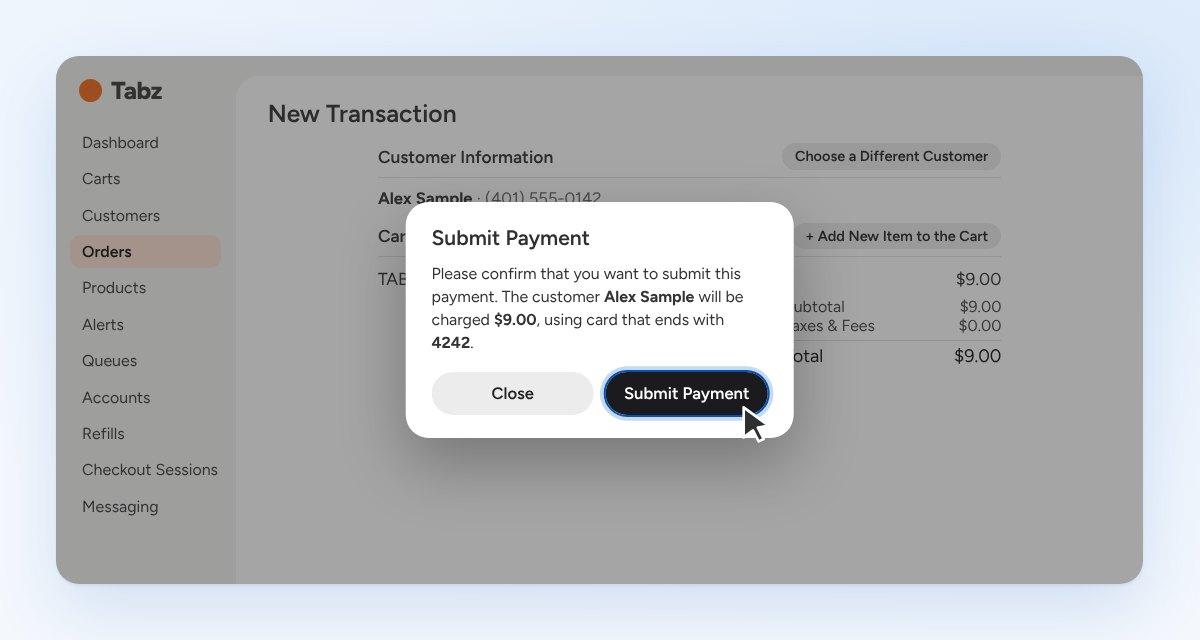
Confirm
Tabz asks you to confirm. Read the customer's name, the amount and the card's last four digits. This is the last stop before the card is charged. Press Submit Payment, or Close to go back.
Tabz then shows the Orders list with the new order at the top, marked Paid. There is no separate success screen.
Using a new card
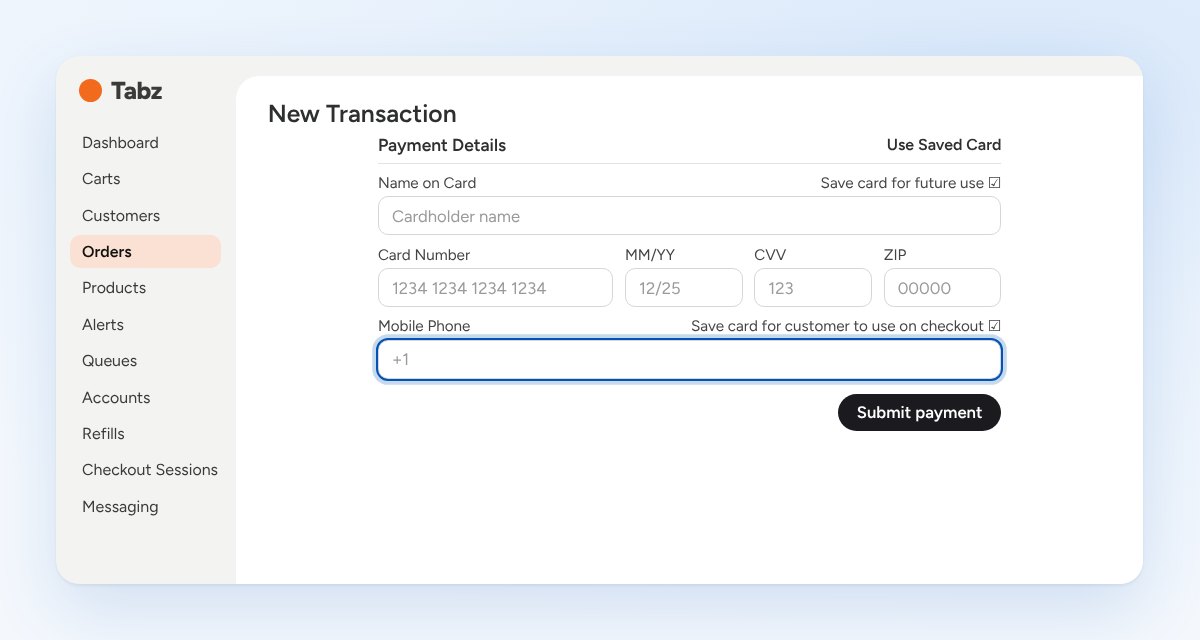
- In Payment Details, press Use New Card.
- Enter the name on the card, card number, expiry, CVV and ZIP as the patient reads them to you.
- Enter the patient's mobile phone. Tabz texts this number to confirm it is their card when they use it at checkout. If you leave it blank, they cannot use the saved card themselves.
- Leave both save boxes ticked unless the patient asks you not to keep the card.
- Press Submit payment and confirm.
Never write a card number down or put it in a text, an email or a note.
What the patient gets
- An email from Tabz (no-reply-orders@runontabz.com).
- A text from the pharmacy number saying the card was charged and we are starting the order.
← All guidesSend a cart to the customer
Put items in a patient's cart and let them pay from their own phone.
Use this when the patient will pay themselves instead of giving you a card.
- Open the customer and press New Transaction.
- Press Add Items to Cart and add what they owe.
- To stop the patient changing a quantity at checkout, tick Lock quantity on that item.
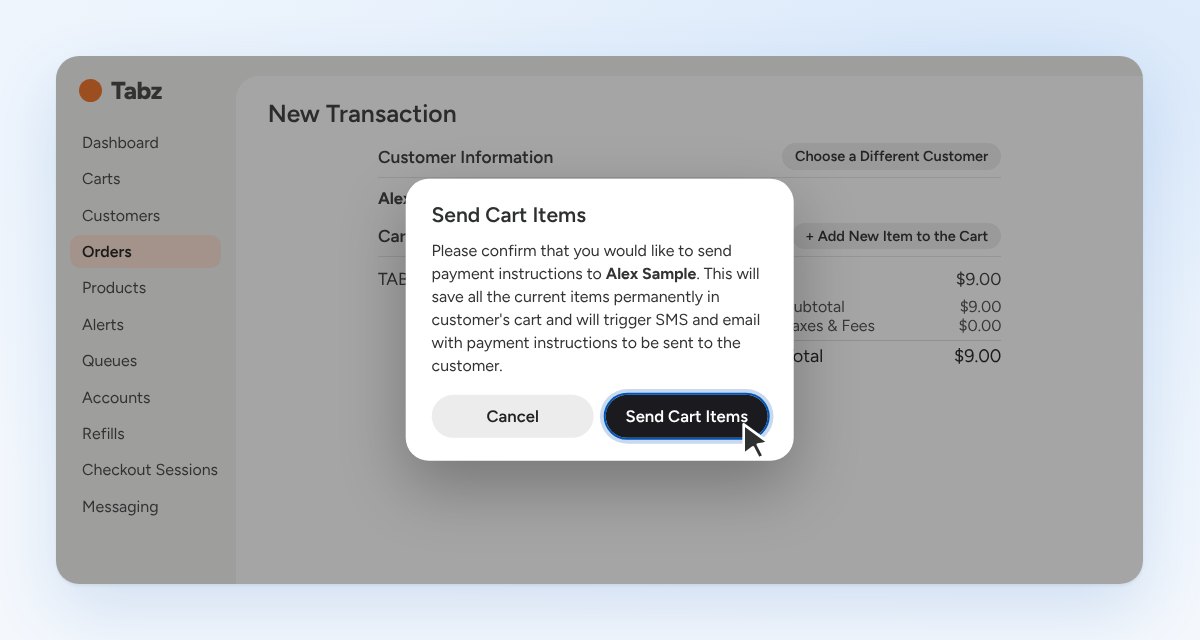
- Press Send Items to Customer.
Tabz asks you to confirm. Sending saves the items in the customer's cart and sends them payment instructions. Press Send Cart Items.
After you send it
- The cart shows as Open on the customer's Cart Information tab.
- Tabz emails the patient their payment instructions.
- If they say it never arrived, press Resend notification on the cart's row.
- If the cart was a mistake, press Cancel cart.
- If they call and want to pay by phone, charge the cart from its own Create transaction icon. See "Charge a card in Tabz".
← All guidesRefund an order in Tabz
Refund all or part of a payment and see what the patient receives.
- Open the order. Find it in Orders, or on the customer's Order History tab.
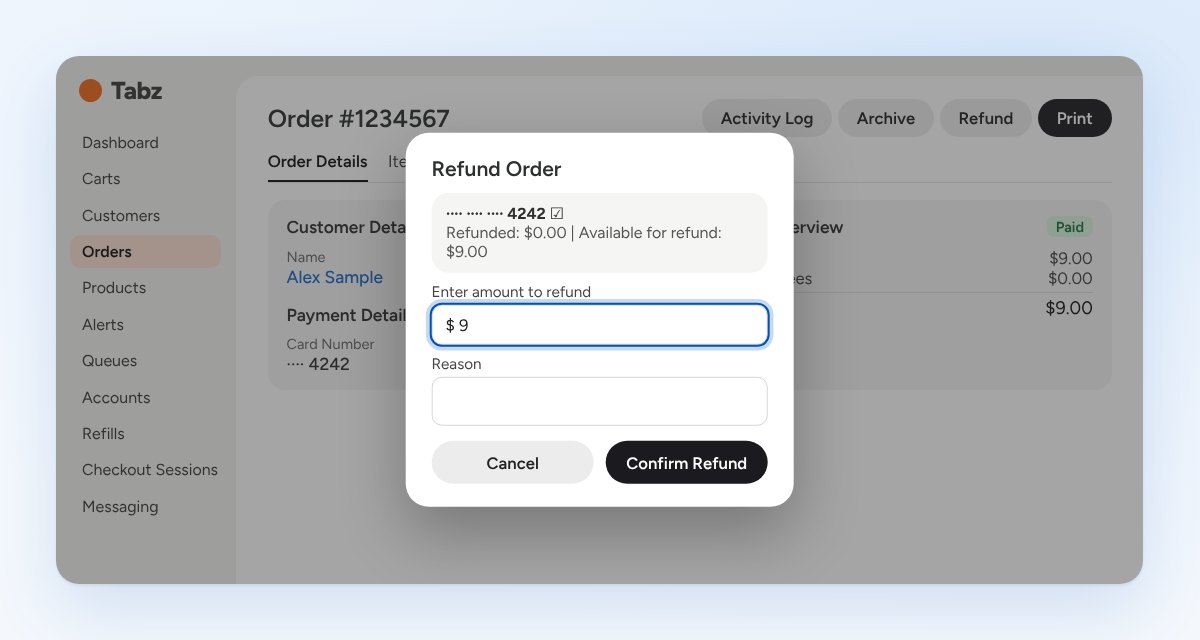
- Press Refund at the top of the order.
- Check the card and the amount available for refund.
- The full amount is filled in. For a partial refund, type the smaller amount.
- Type the Reason. It is saved with the refund.
- Press Confirm Refund.
Check it went through
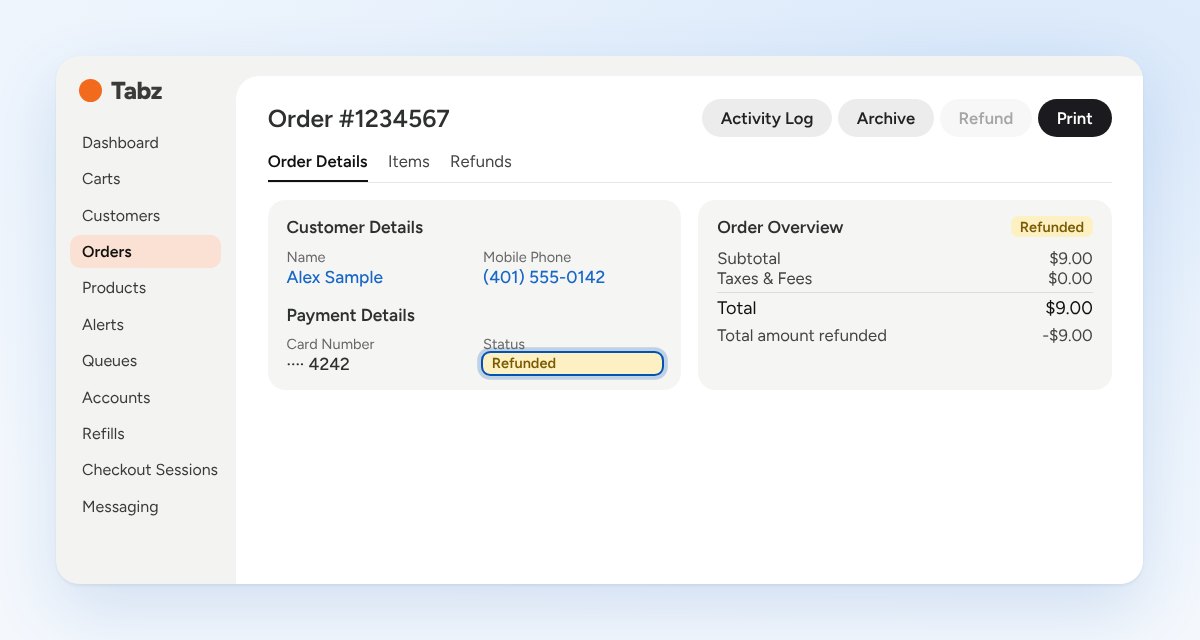
The order's status changes to Refunded and a "Total amount refunded" line appears. After a full refund the Refund button is greyed out. The Refunds tab lists each refund with its reason and amount, and a print icon for the receipt.
What the patient gets
- An email from Tabz (no-reply-orders@runontabz.com) with a refund receipt attached.
- No text. If the patient should hear from us, text them from the Payments page.
- The time on the receipt is Central time, one hour behind ours. Keep that in mind if a patient asks about it.
The money goes back to the card that was charged. How long it takes to show depends on the patient's bank.

